Your guest list is the fastest way to keep your wedding organized. In WeddingHelp, you can add guests, update their details anytime, and send RSVP invite emails whenever you are ready.
Add guests to your list
- Go to My Wedding.
- Open the Guest List tab.
- In Add New Guests, enter:
- The guest’s full name
- Optionally, an email address (recommended for sending RSVP emails)
- Optionally, a phone number
- Click Add Guest(s).
Add a plus-one
If the guest is allowed a plus-one, you can:
- Click + Add plus-one while adding guests, or
- Add them first, then enable plus-one later from the guest list.
View and manage your guest list
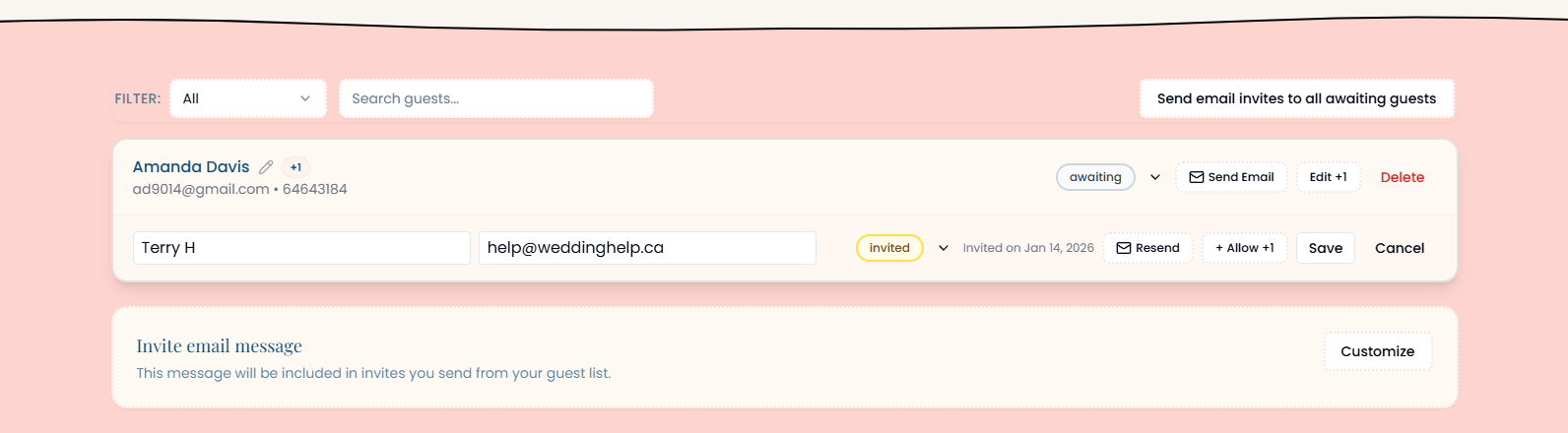
Once guests are added, you will see them in your guest list below. From here you can:
- Edit guest details (name, email)
- Change a guest’s status (for example: awaiting, invited, attending, declined)
- Enable or edit a plus-one (+1)
Image: Guest list overview
Send RSVP invite emails
WeddingHelp lets you send RSVP invite emails in two ways:
Option 1: Send (or resend) to one guest
Each guest row has a Send Email button.
- Use this to send an invite to one guest.
- If you already sent an invite before, the button can be used to resend.
- You can resend emails at any time.
Important:
- Guests must have an email address to receive an invite email.
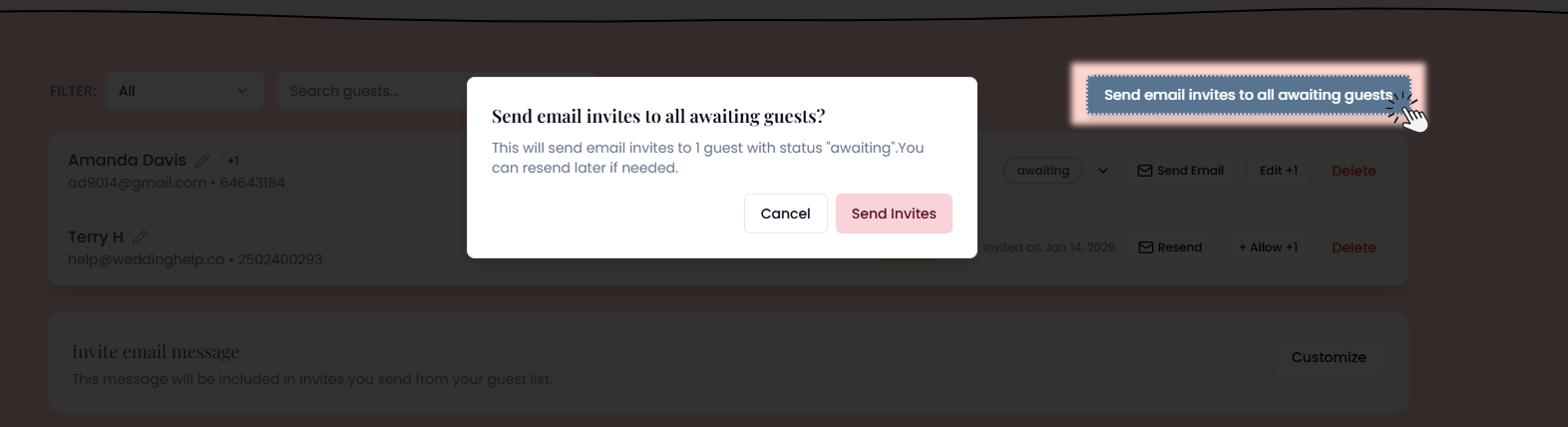
Option 2: Send to all guests who have not received an email
If you want to invite everyone at once, use:
- Send email invites to all awaiting guests
This sends invite emails to all guests who:
- Have a status of awaiting
- Have an email address saved
You can resend emails later to individual guests whenever needed.
Image: Bulk send invites
Need help?
If something does not look right, double check that the guest has an email address saved. If you still need help, contact us here: