Where to find your analytics
- Sign in to WeddingHelp.
- Click your profile icon in the top-right -> Vendor Dashboard, or go straight to your Vendor Dashboard.
- Open the Analytics tab.
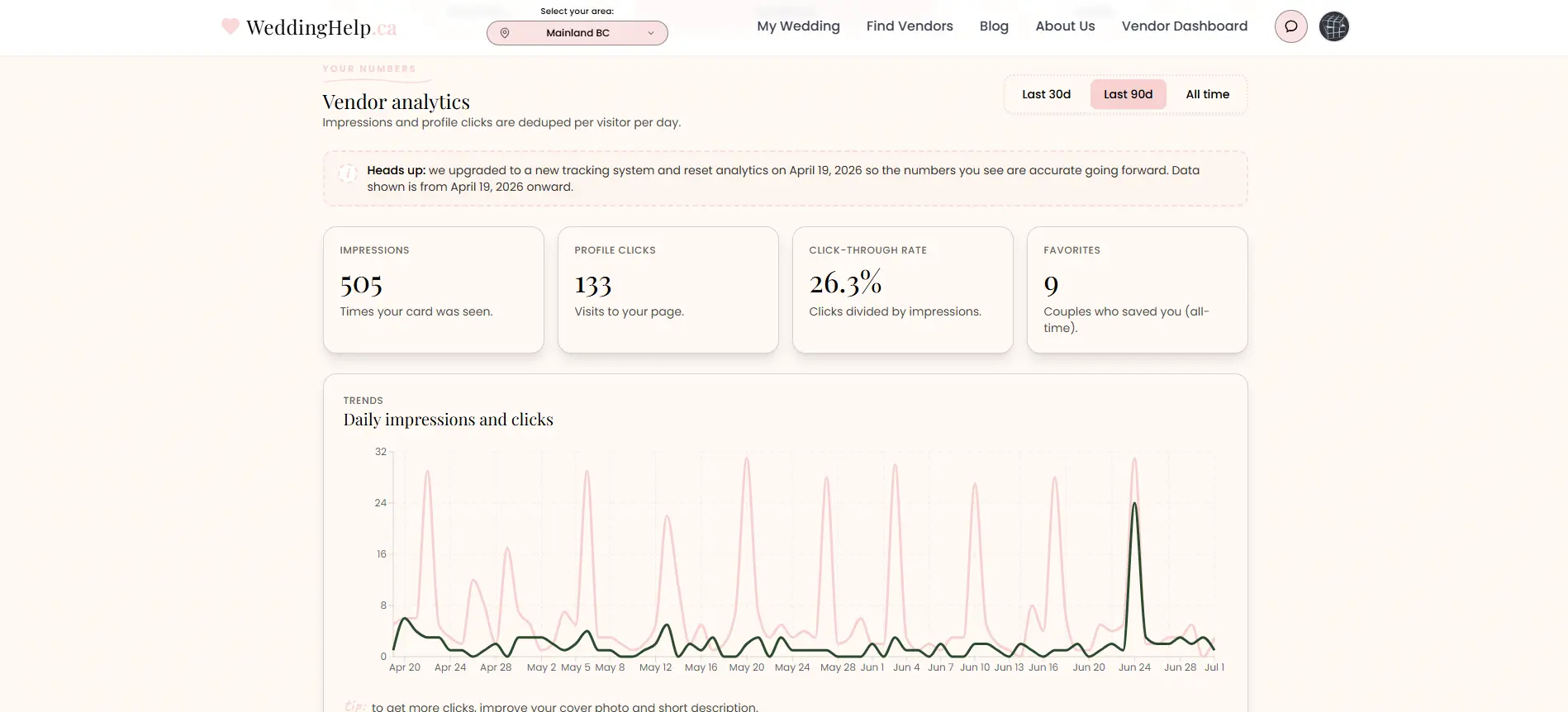
Use the buttons at the top right to switch between Last 30 days, Last 90 days, and All time.
What each number means
| Metric | What it tells you |
|---|---|
| Impressions | How many times your card was seen in search and listings |
| Profile clicks | How many people opened your page |
| Click-through rate | Clicks divided by impressions, a measure of how appealing your card is |
| Favorites | Couples who saved you to their shortlist (all-time) |
| AI assistant visits | Couples who reached your page from ChatGPT, Perplexity, and other assistants |
Impressions and clicks are deduped per visitor per day, so one couple refreshing your page ten times still counts once.
Reading the trend chart
The Trends chart shows daily impressions and profile clicks side by side. Spikes usually follow being featured in a guide or blog post, seasonal planning waves, or a fresh cover photo. If impressions are healthy but clicks are low, improve your cover photo and short description first.
Who gets analytics
Analytics are included with all Featured Listing plans. If your Analytics tab shows a lock, getting featured unlocks the full dashboard instantly.
Want a deeper look?
We are happy to pull detailed analytics for your business, like longer histories or specific breakdowns, whenever you want them. Just contact us and ask.